CreativeBooth Tutorials
Every tool, walked through end to end — a video, the written steps and screenshots of the real screens.
Photo booth templates
Print-ready layouts with transparent photo slots, in the sizes a booth actually prints. Two routes: generate one from a reference image, or start from a finished theme and make it yours.
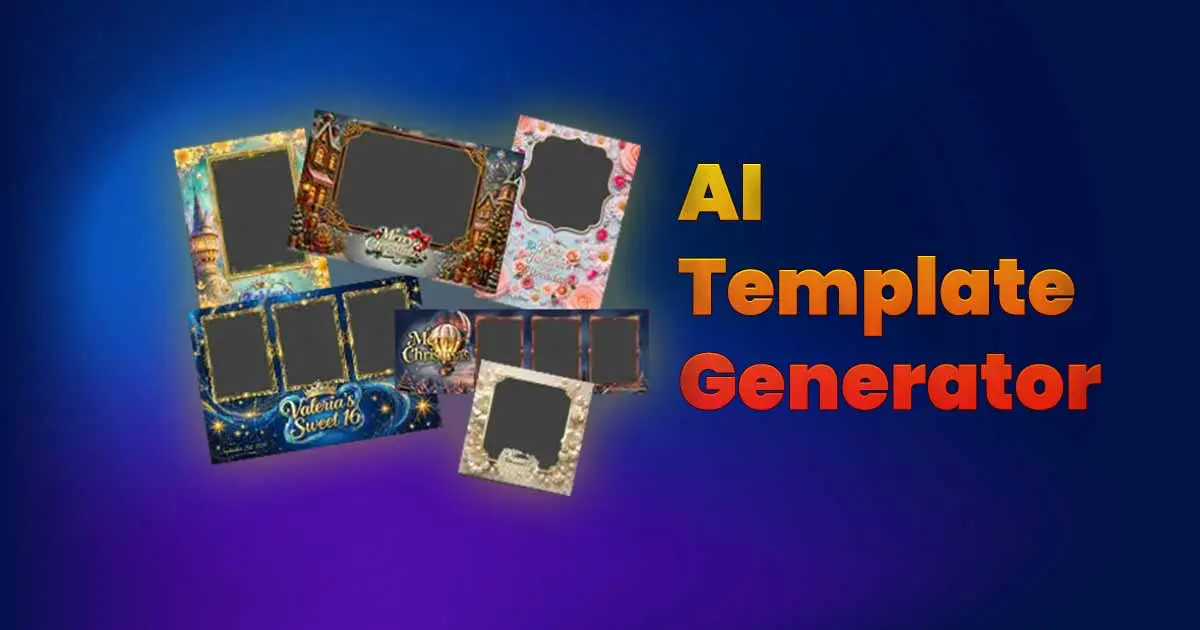 5:10With AI
How to Make a Photo Booth Template
Three steps from a blank layout to a print-ready template with transparent photo slots — no Photoshop, no design experience.
Tool:AI Templates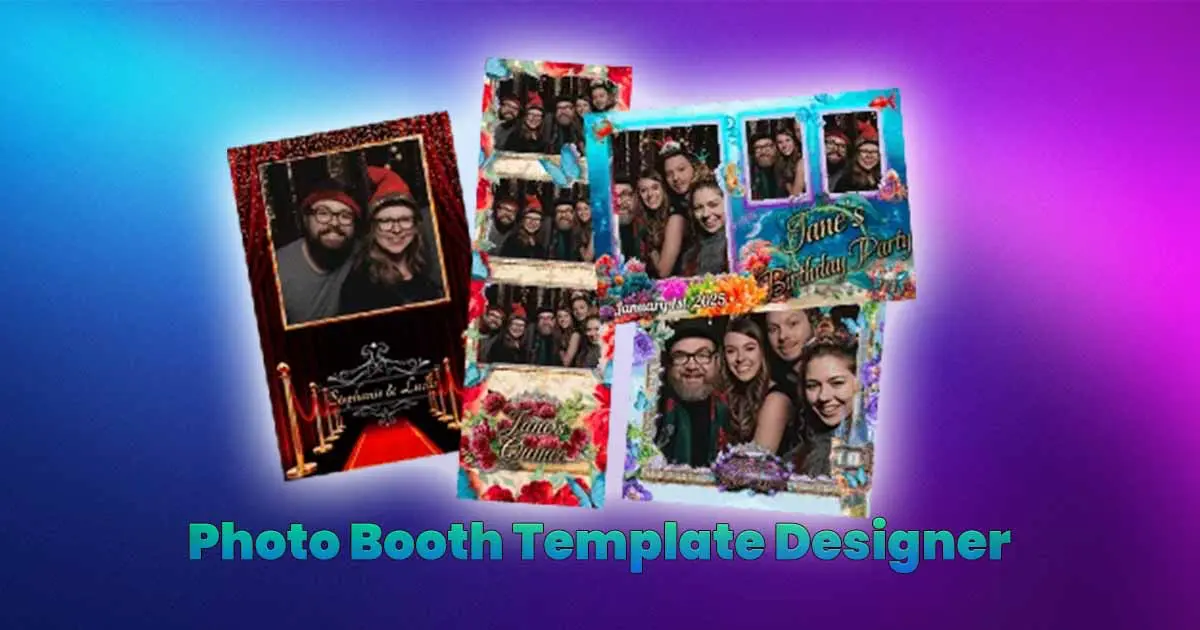 5:51From a design
How to Customize a Photo Booth Template
Start from a finished theme, change the parts that matter, and walk out with sixteen print-ready layouts — no AI in the loop, and the same result every time you run it.
Tool:Template Designer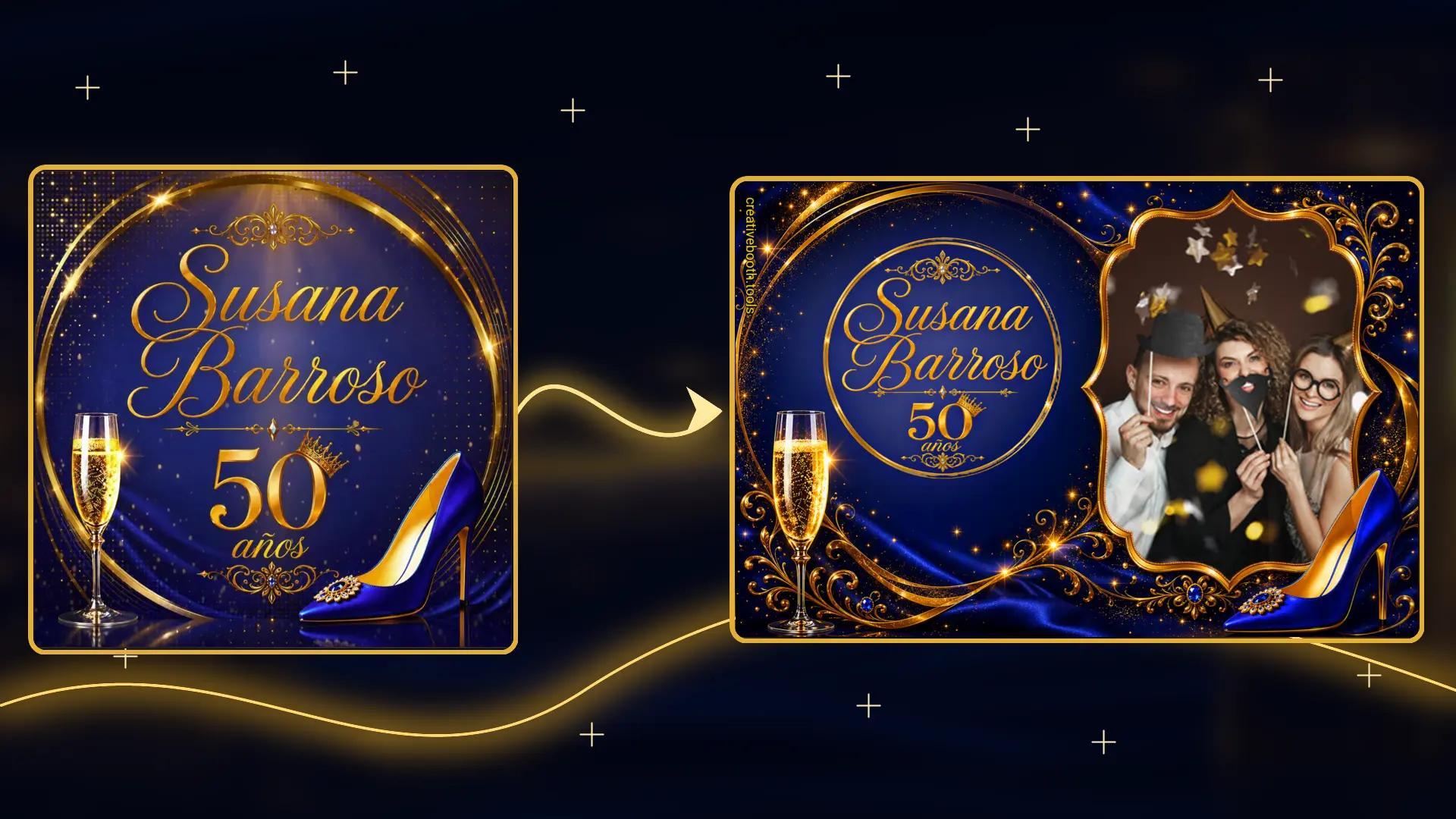 4:58Edit & compose
Creative Photo Booth Template Editor
How to lay several monograms over a finished template, generate new ones without leaving the canvas, and grade the whole composition before you save it.
Tool:Creative Editor
Monograms
Transparent PNGs for templates, welcome signs, backdrops and invitations — and the animated loop for projectors and LED walls once the still is done.
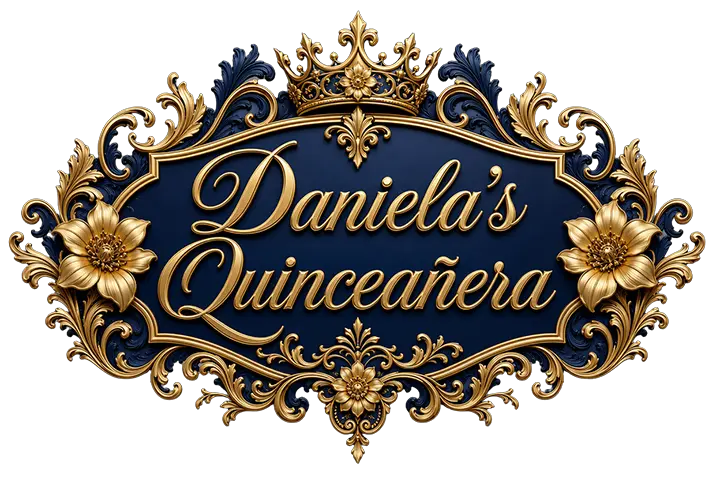 3:47With AI
How to Make a Monogram with AI
A complete walkthrough of both ways to build a monogram in CreativeBooth — from a blank form, or from an invitation you already designed.
Tool:AI Monogram 4:24From a design
How to Customize a Monogram
Thirty finished monogram designs, your names and your colours on top, and a transparent PNG about twenty seconds later. No AI, no prompt, and the same result every time you run it.
Tool:Standard Monogram Maker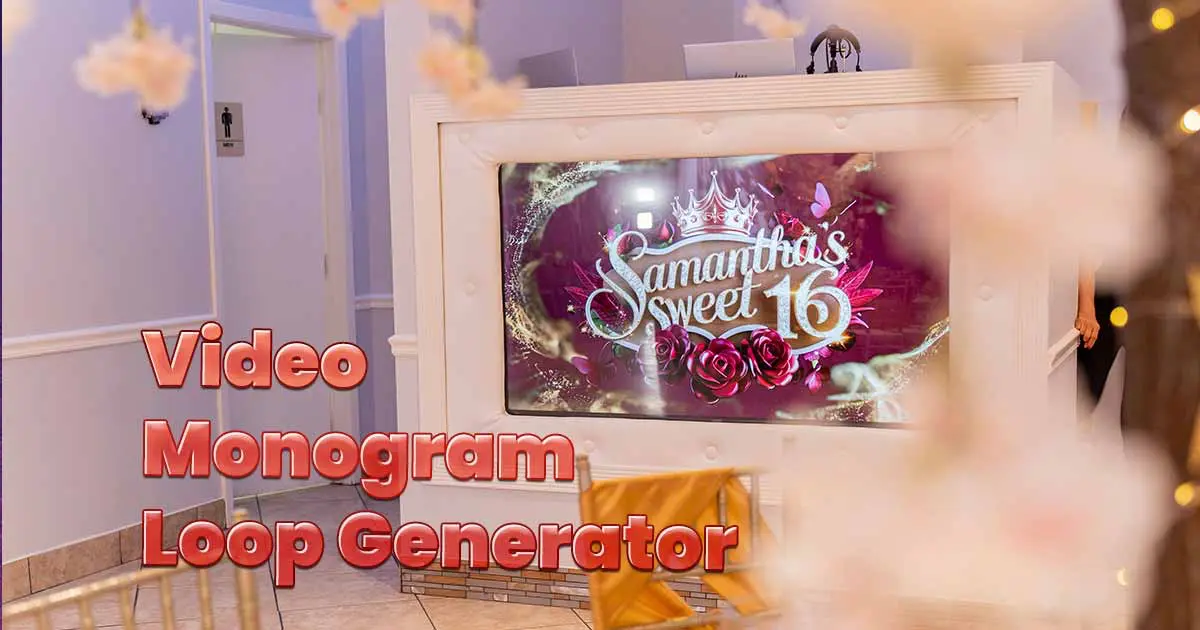 4:48Animated
How to Make a Video Monogram
Turn a monogram into an animated loop for projectors, TVs, LED walls and photo booth start screens — landscape, square or portrait, 60 ready-made styles per format, and a Scene Editor for building your own.
Tool:Video Monogram
AI, or a design that already exists?
Both routes lead to a finished file. What changes is how much you describe and how much you pick — and, above all, whether you need the same result twice.
Let the AI draw it
You describe the event, or hand over a reference image, and the tool draws something that did not exist before. Best when the client has an idea that no catalogue covers, or when you are working from an invitation that already has its own look. The result is a one-off: run it again and it comes back different.
- You have a reference image or a clear idea in your head
- The design has to match something that already exists
- A unique result matters more than repeating it exactly
Start from a finished design
You open a design that is already drawn, change the text, the colours and the details it exposes, and press generate. It comes back in seconds and the same settings always produce the same file — which is what you want when a client changes their mind about one colour at eleven at night.
- You want to know what it will look like before you commit
- The client will ask for changes and you need them fast
- You would rather choose than describe
Nothing stops you using both. Plenty of people draw the monogram with AI and then build the template around it from a theme.
Before you pick one
Which tutorial should I start with?
Start from what you need to hand over. If it is something the booth prints, go to the photo booth template tutorials; if it is artwork that goes on top of a template, a sign or a screen, go to the monogram ones. Inside each family, the AI route suits a design that has to be unique and the design library suits a result you can reproduce.
What is the difference between the AI tools and the design library?
The AI tools draw something new each time from what you describe or from a reference image you upload. The library tools render a design that is already drawn, so the same settings always give you the same file, and they come back in about twenty seconds.
Do I need Photoshop or any design software?
No. Everything happens in the browser, and what you download is finished: templates come out print-ready with the photo slots already transparent, and monograms come out as high-resolution PNGs with a transparent background.
Do I have to watch the videos?
No. Every tutorial has the whole process written out, with screenshots of the current screens. The written steps are the version that gets updated when the app changes, so where a recording is older than the interface, the text is the one to follow.
Not covered here?
The tutorials follow the tools, and the tools keep growing. If the thing you are stuck on is not on this page, ask for it and it goes on the list of what gets recorded next.